These options come with the Darwinium profiling snippets you install from the Marketplace. They control what JavaScript profiling collects and how it behaves. You set them in the Darwinium Portal:
- Edge (
dwn_profiling.snippet): on the Inject darwinium profiling operation in a step's Body Mappings. See Insert JavaScript profiling at the edge. - Tags (
dwn_profiling_tag.snippet): on the Tag Profiling Step. See Install JavaScript tags.
Hover the (i) next to an option in the Portal for inline help. Switching off data you don't need makes the script and its result smaller. For the best detection, we recommend leaving the defaults on.
Your site's Content Security Policy, CORS, Permissions-Policy and header size limits can stop profiling working, often without an obvious error. Check Site requirements for JavaScript profiling during setup and after changing them. The page is private: sign in through the Portal (see Help & documentation access) or ask your Darwinium contact.
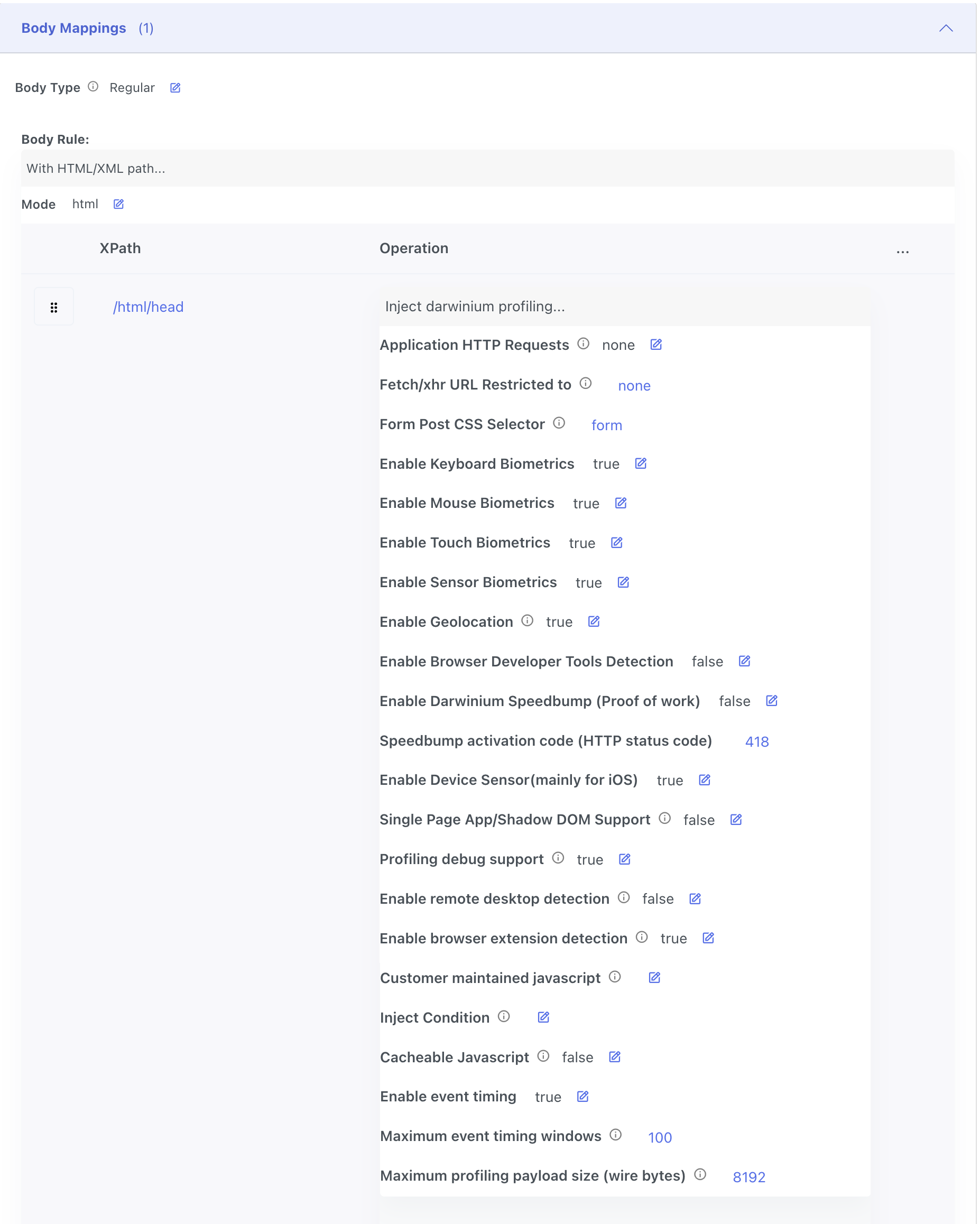
Options
Options are listed in the order the Portal shows them for edge. The Tag Profiling Step starts with Host, Listen URL and Javascript Variable Name (see Install JavaScript tags), then lists the shared options in nearly the same order. Each option shows its default. "Edge only" means the option isn't on the Tag Profiling Step.
Application HTTP Requests
Edge only. Default: fetch.
How your page sends the submit request that should get the dwn-profiling header, for example POST /login. To check, open your browser's developer tools and look at the Type column in the Network tab.
fetch: adds adwn-profilingheader to requests made withwindow.fetch.XMLHttpRequest(xhr): adds the header toXMLHttpRequestrequests, also known as Ajax.both: adds the header to both kinds of request.none: for regular HTML form posts. The result goes in a hiddendwn-profilingform field instead of a header.
Set this together with the next two options. See Insert JavaScript profiling at the edge, Step 4.
Fetch/xhr URL Restricted to
Edge only. Default: any.
Limits which fetch or XMLHttpRequest requests get the dwn-profiling header.
/example1,/example2: only requests to these paths get the header. This is the recommended setting: list the requests you want profiled, such as login and registration.any: everyfetchorXMLHttpRequestrequest the page sends gets the header, including requests to other domains and ones you didn't mean to profile. Useful when several different requests could be the submit request.none: no request gets the header. Use this with form posts.
Each path is matched against the whole request path, one / segment at a time:
/api/loginmatches/api/loginonly, not/api/login/otp. Query parameters are ignored.*as a whole segment matches one or more segments./*/auth/loginmatches/en/auth/loginand/en/gb/auth/login./api/*matches anything under/api/.*at the end of the last segment matches the start of it and anything below it./api/login*matches/api/login,/api/login-v2and/api/login/otp.*anywhere else isn't supported, and that path never matches.- A path on its own matches on every host the page sends requests to, including other domains. To limit it to one host, include the host:
api.example.com/login.
With any, every request the page sends carries the new dwn-profiling header, including requests to other domains such as analytics or payment providers. Some servers and APIs reject requests with headers they don't expect, so those requests can fail. Only use any if every request accepts the header.
Form Post CSS Selector
Edge only. Default: form.
Limits which HTML forms get the hidden dwn-profiling field. form matches every form on the page that sends a POST. If your page uses fetch or XMLHttpRequest, set this to none.
For example, each of these selectors matches <form action="/example/post" method="post" id="my_form_id">:
form#my_form_id
form[action='/example/post']
form[method='post']
Pick a selector that matches only the intended form and won't break when the page changes. If no form matches, the page still works, but the result isn't sent.
Enable Keyboard Biometrics
Default: on. On the Tag Profiling Step: Enable Keyboard Biometrics on Form Fields.
Collects how the customer types into mapped input fields: typing rhythm, shortcuts (autofill, paste, copy) and navigation (tab, arrows, backspace, delete). This lets you spot pasted or scripted entry in fields people normally type. Each field needs a context: map fields in the Portal on the edge (Step 6), or in key_bm with tags (Step 4).
Enable Mouse Biometrics
Default: on.
Collects clicks, mouse movement (shape, distance, speed and timing) and scrolling. This helps separate a person from automation.
Enable Touch Biometrics
Default: on.
Collects taps (size and pressure) and swipes (shape, speed and handedness) on mobile browsers.
Enable Sensor Biometrics
Default: on.
Collects motion sensor data, such as the accelerometer and gyroscope, on mobile browsers. A phone held in a hand moves, an emulator doesn't.
Enable Geolocation
Default: off for edge, on for tags. On the Tag Profiling Step: Use Device Geolocation.
Asks the browser for the device's precise location, using GPS, Wi-Fi and IP. This is more accurate than IP location alone and a useful trust signal.
The browser asks the customer to allow or deny access to their location.
Enable Browser Developer Tools Detection
Default: off.
Detects when the browser's developer tools are opened during the session. Fraudsters often inspect the pages they are attacking.
Enable Darwinium Speedbump (Proof of work)
Default: off.
Adds the Speedbump solver to the page. Speedbump slows automated attacks with a puzzle the browser solves in the background. It works on fetch and XMLHttpRequest requests that get the dwn-profiling header, not on form posts. See Digital Speedbump.
Speedbump activation code (HTTP status code)
Default: 418.
The HTTP status code that tells the browser to solve a Speedbump challenge. Choose a code your site never returns on these pages.
Enable Device Sensor (mainly for iOS)
Default: off for edge, on for tags.
Collects motion sensor data on iOS, which needs its own permission handling. Needs Enable Sensor Biometrics on.
The browser may ask the customer to allow or deny access to motion sensors.
Single Page App/Shadow DOM Support
Edge only. Default: on.
Finds form fields inside a Shadow DOM, and keeps watching for fields that single-page apps re-render after the page loads. Keyboard biometrics needs this to find fields on those pages, so you can switch it off if keyboard biometrics is off. For tags, set use_deep_query_selector in start().
Profiling debug support
Edge only. Default: on.
Leave this at its default.
Enable remote desktop detection
Default: off.
Checks whether a remote desktop app is running on the device (Windows and macOS). This helps catch scams where a fraudster controls the victim's computer.
While this is on, the browser's developer tools show many network and console errors. These are expected.
Enable browser extension detection
Default: on.
Checks for installed browser extensions from a built-in list, such as VPNs, password managers, security tools and captcha solvers. The browser's developer tools show console errors, which are expected. To check your own list, use Customer maintained javascript. Your list replaces the built-in one for every browser.
Customer maintained javascript
Default: empty.
Path to a JavaScript file in your node's repository that runs before profiling. Use it to customise profiling, for example to set your own list of browser extensions to detect. Spaces and line breaks are removed when the file is added to the page, so avoid spaces inside text values, don't use // comments, and end every statement with a semicolon.
The usual use is your own list of browser extensions to detect. For example, set this option to extensionList.js and add that file to your repository:
dwn_ns.extensionList = {
  "Chrome": {
    list: [
      { id: "gighmmpiobklfepjocnamgkkbiglidom", name: "ADBLOCK", file: "adblock-ads-allowed-icon.svg" },
      { id: "pgojnojmmhpofjgdmaebadhbocahppod", name: "CAPTCHASOLVER", file: "www/assets/key.201fc3f4.svg" },
      { id: "ifibfemgeogfhoebkmokieepdoobkbpo", name: "TWOCAPTCHA", file: "assets/images/logo.svg" }
    ]
  }
};
Each entry has the extension's store id, the name we record when we find it, and a file inside the extension that web pages are allowed to load.
A custom list replaces the built-in one, which covers Chrome, Edge and Opera. A browser missing from your list gets no extension detection, so a list with only Chrome stops detection on Edge and Opera.
Inject Condition
Edge only. Default: empty.
An optional condition that limits which page loads get profiling. Empty adds profiling to every request the step matches.
Cacheable Javascript
Edge only. Default: off.
Keeps request-specific values out of the injected script, so your CDN can cache the page. Turn it on for pages served from cache. The trade-off is that some request tracing details aren't available.
Enable event timing
Default: on.
Records the timing of the customer's interactions with the page, such as clicks, key presses, scrolling and form submits, and when the page loads, gains or loses focus, is resized or closed. This gives a timeline of how the customer used the page.
Maximum event timing windows
Default: 100.
The most timing windows kept in total, across all event types, up to 1000. Higher values capture more detail but make the result larger.
Maximum profiling payload size (wire bytes)
Default: 8192.
The largest the encoded profiling result can be, in bytes. If it would be larger, profiling drops debug data, then event timing, then remote desktop results until it fits. If it still doesn't fit, the full result is sent. Set it to the header size limit of your CDN or backend. 0 turns the limit off.
Tags only: options in start()
Some settings for tags are passed in code when you call start(). See Install JavaScript tags for where the call goes.
| Key | Type | What it does |
|---|---|---|
key_bm |
list of {selector, context} |
Form fields to profile for keyboard biometrics. Needs Enable Keyboard Biometrics on Form Fields on the step. Each item can also take use_deep_query_selector |
sensor |
true / false | Overrides the device sensor option for this page |
use_deep_query_selector |
true / false | Finds fields in single-page apps and Shadow DOM |
log |
text or list | Turns on browser console logging for troubleshooting, for example 'main' |